


If you are trying to use GE universal remote codes to control your TV, DVD player, or soundbar, you are in the right place. This guide gives you everything you need the right codes, simple steps to program your remote, and easy fixes when something goes wrong. No technical background is needed. Just follow the steps, and you will have your remote working in minutes.
What Is a GE Universal Remote and Why Do You Need Codes?
A GE universal remote is a single remote control that works with many different devices at once. Instead of keeping four or five remotes on your couch, you use just one. GE remotes are made by a company called Jasco and support over 200 device brands, including Samsung, LG, Sony, Vizio, and TCL.
To connect your GE remote to a device, you need a special number called a remote code. This code tells the remote how to “talk” to your TV or other device. Without the correct code, the remote will not work. Each brand and device type has its own set of codes, so you need to use the right one for your specific device.
How to Find Your GE Remote Version (CL3, CL4, CL5, or CL6)
Before you enter any code, you need to know which version of GE remote you have. Open the battery cover on the back of your remote and remove the batteries. Look at the sticker inside the battery compartment. You will see a label that says CL3, CL4, CL5, or CL6. This is your code list version, and it is very important.
Using codes from the wrong version is the most common reason programming fails. Here is a quick breakdown of each version:
| Version | When It Was Common | Notes |
|---|---|---|
| CL3 | Before 2018 | Oldest version; uses 3 or 4-digit codes |
| CL4 | 2018 to 2020 | Slightly updated code library |
| CL5 | 2020 to 2022 | Added support for TCL Roku and Hisense Roku TVs |
| CL6 | 2022 onward | Newest version; includes Insignia Fire TV codes |
If you do not see a CL label inside your remote, start with CL3 codes. If those do not work, try CL4 or CL5 codes next.
Common GE Universal Remote Codes for Popular TV Brands
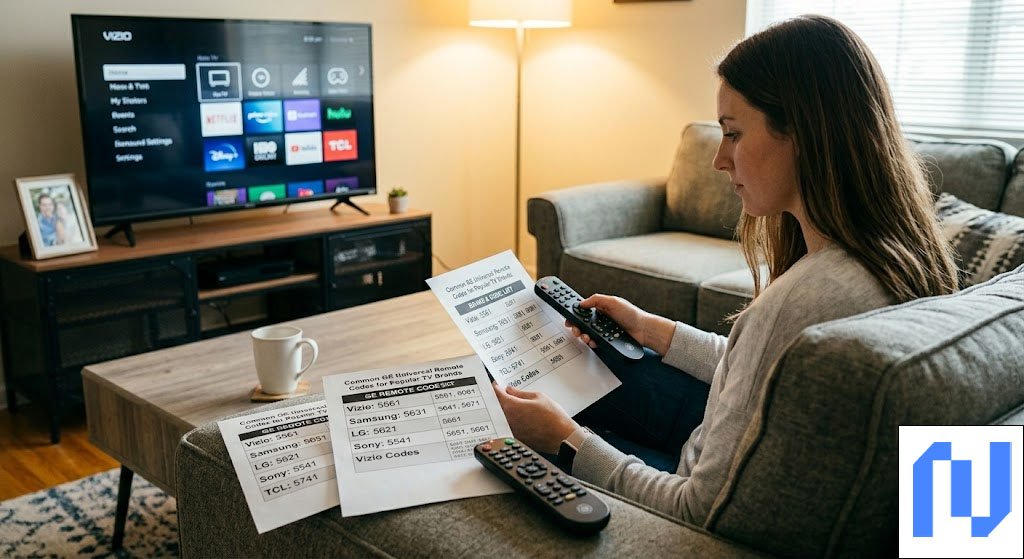
Here are the most commonly used GE universal remote codes for the top TV brands. These codes work with CL5 and CL6 versions unless noted otherwise.
| TV Brand | Recommended Code(s) |
|---|---|
| Samsung | 0105, 0019, 0812 |
| LG | 0004, 0050, 0155 |
| Sony | 0002, 0153 |
| Vizio | 5631, 0117, 0135 |
| TCL Roku TV | 2891, 6171 |
| Hisense | 0587, 2601 |
| Sharp | 0093, 0165 |
| Toshiba | 0156, 0070 |
Start with the first code in the list. If it does not work, try the next one. Some brands have multiple codes because different TV models use different signal types. Always test the Power, Volume, and Input buttons after programming to make sure the remote works fully.
3 Ways to Program Your GE Universal Remote
Method 1: Direct Code Entry (Fastest)
This is the quickest and most common method. Turn on the device you want to control. Press and hold the SETUP button on your GE remote until the red light stays on. Press the device button that matches your device, such as TV, DVD, or AUX. Enter the 4-digit code from the list using the number keypad. If you enter the code correctly, the red light turns off. Point the remote at your device and press the Power button to test it.
If the device does not respond, the code did not work. Press SETUP again and try the next code in the list for your brand. Keep going until the device responds to all main buttons.
Method 2: Auto Code Search (No Code Needed)
Use this method if you do not know your code or if direct entry does not work. Turn on your device manually. Press and hold the SETUP button until the red light stays on. Press the device button (TV, DVD, or AUX). Then press the Power button slowly and repeatedly. The remote will go through all its codes one by one. Stop when your device turns off. Press Enter to save the code.
This method takes more time, but it finds the correct code automatically without you needing to look anything up. It works well for older or less common device brands.
Method 3: Brand Code Search
Some GE remote models let you search by brand. Press and hold SETUP until the red light turns on. Press the device button you want to program. Use the channel up button to move through codes one at a time. When your device turns off, press Enter to save. This works similarly to the auto search but gives you more control over the process.
GE Universal Remote Codes for Other Devices
GE remotes do not just work with TVs. They also support DVD players, Blu-ray players, cable boxes, soundbars, and streaming devices. Here are some useful codes for non-TV devices:
Soundbars: When programming a soundbar, press the AUX button instead of the TV button during setup. Common soundbar codes include 0189, 0204, and 0660 for popular brands. If your soundbar connects via HDMI ARC, volume control may also work through your TV settings.
Cable and Satellite Boxes: For Xfinity and Comcast boxes, try codes 1376 or 0476. For DirecTV, use 0178 or 0566. Dish Network boxes often respond to 0775 or 0449. These codes let you control your cable box channels and power with one remote.
Troubleshooting: When Your GE Remote Does Not Work
Most GE remote problems have simple solutions. Here are the most common issues and how to fix them:
The red light blinks but the TV does not react. You are most likely using the wrong CL version codes. Check your battery compartment again and make sure you are using codes that match your CL number. Trying codes from CL5 when your remote is CL3 will not work.
Power works but Volume or Channels do not. This means you have a partial code match. The code works for some functions but not all. Go back and try the next code in the list for your brand. Keep testing until all main buttons work correctly.
The remote does not enter Setup mode at all. Put in fresh batteries. Old or weak batteries are a very common cause of setup problems. Also, make sure you are pressing and holding the SETUP button long enough, until the red light stays on steadily.
No code works for your device. Try the auto code search method. If that also fails, check that your device uses infrared (IR) signals. Bluetooth-only devices, such as the standard Amazon Fire TV Stick, cannot be programmed with a GE remote.
Tips to Get the Best Results
A few small habits make programming much easier. Always start by checking your CL version before you try any codes. Use the official Jasco website at byjasco.com to look up codes by brand and CL version if you want a verified list. After programming, test Power, Volume, and Input — these three are the most important. If all three work, your setup is complete.
For homes with many devices, GE makes models that can control up to 8 devices at once. Each device button stores its own code, and those codes stay saved even when you change the batteries. This makes GE remotes a practical and affordable choice for most households.
Conclusion
GE universal remote codes are easy to use once you know your remote version and follow the right steps. Start by checking your CL number inside the battery compartment. Pick the right code for your brand, enter it using the SETUP button, and test your device. If the first code does not work, simply try the next one. With three programming methods available and codes for over 200 brands, you can connect your GE remote to almost any device in your home.
Frequently Asked Questions
Q1. How do I find the right GE universal remote code for my TV?
Open the battery compartment and check your CL version (CL3, CL4, CL5, or CL6). Then find your TV brand in a code list that matches your version. Start with the first code listed and test it. If it does not work, try the next one.
Q2. What is the GE universal remote code for Samsung TV?
The most commonly used code for Samsung TVs is 0105. If that does not work for all buttons, try 0019 or 0812. These cover most Samsung models from 2015 onward.
Q3. Can I use a GE universal remote with a smart TV?
Yes. GE remotes work with most smart TV brands like Samsung, LG, Sony, Vizio, TCL, and Hisense, as long as the TV uses infrared signals. You just need to enter the correct code or use the auto search method.